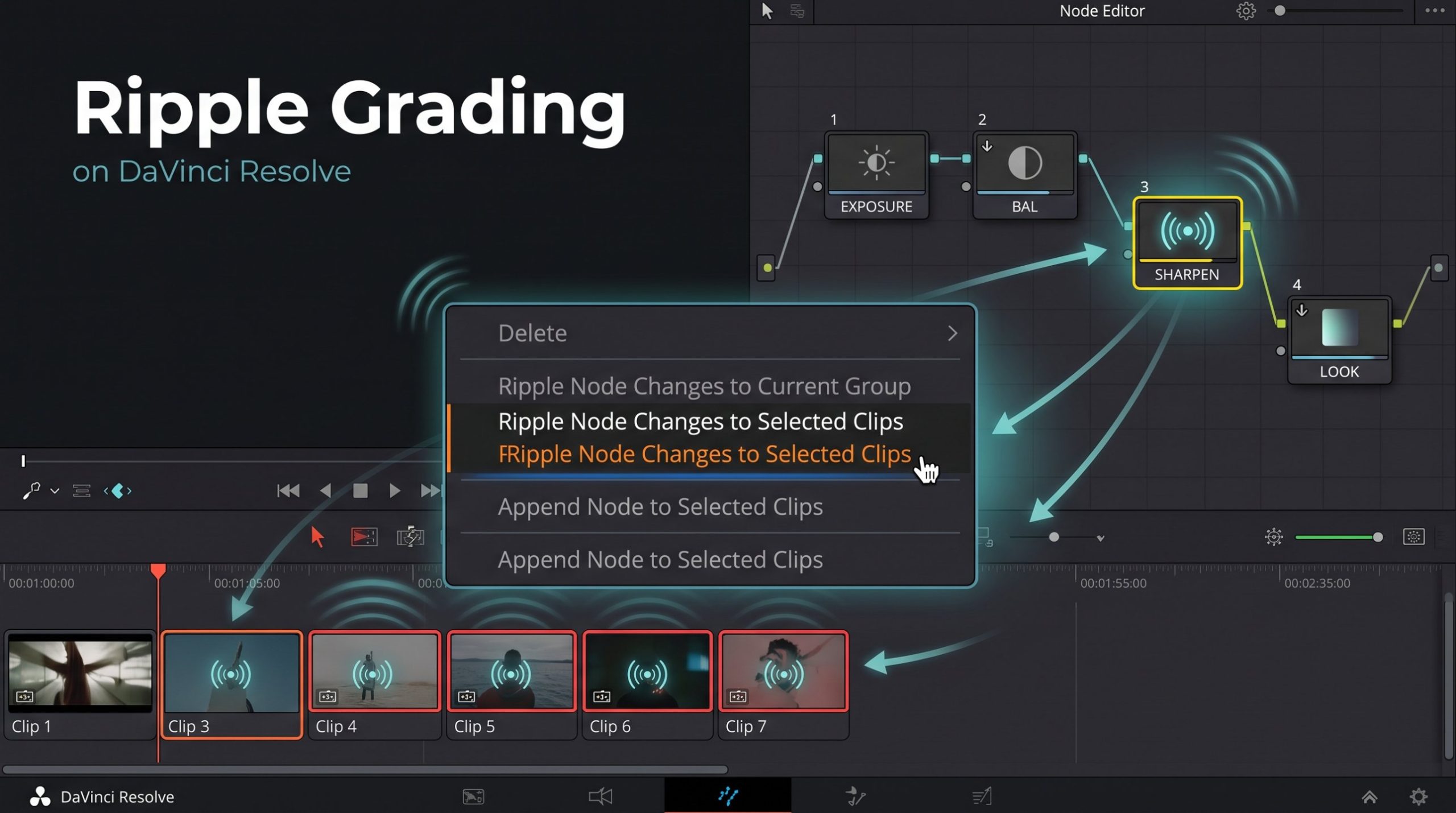

Ripple Grading in DaVinci Resolve lets you push one node change to many clips in a single click.
DaVinci Resolve gives you a lot of ways to batch-grade and adjust shots, so you’re not stuck tweaking one clip at a time. There’s the standard copy/paste and middle-mouse-click, ColorTrace for pulling grades across from a different timeline or conform, Groups for grading a whole scene as one unit, and Local vs. Remote grades for linking clips that share the same source. And then there’s Ripple Grading, a different approach that lets you push a single change out to matching nodes across many clips at once, without necessarily grouping or linking them permanently.
The Color page node editor is where Ripple Grading operates.
When You’d Actually Use This
You’ve already graded a whole scene, clip by clip, node by node. The client comes back and says, “Can we bring the sharpening down a touch across this whole sequence?” Or you notice one small thing that’s off on every shot. You don’t want to regroup your clips, re-link them as Remote grades, or manually click into 20 clips and adjust the same slider 20 times.
Ripple Grading lets you make that change once, on one clip, and push it to the matching node on every other clip you select.
How It Compares to Resolve’s Other Batch Methods
| Method | What it copies | Stays linked after? | Best for |
|---|---|---|---|
| Copy / Paste (Ctrl/Cmd+C+V) | Whole grade, or a single node when the relevant node-editor workflow is used. | No | One-off transfer to a specific clip. |
| Middle-mouse click | Applies a grade from another clip. | No | Quickly copying a grade to one clip. |
| ColorTrace | Transfers grades between timelines using matching clip information. | No; one-time transfer | Moving grades to a new conform, cut, or edit version. |
| Groups | Shared Pre-Clip and Post-Clip node trees. | Yes | Keeping a scene consistent. |
| Local vs. Remote grades | Remote grades can share a grade across instances of the same source clip. | Remote: yes | Repeated uses of the same source footage. |
| Ripple Node Changes | Pushes changes to matching numbered nodes on selected clips or clips in the current group. | No; one-time operation | Targeted changes across an already-graded sequence. |
The key difference is that Ripple makes a targeted, one-time push into work you’ve already done. Groups and Remote grades are useful when you want a shared grading relationship, while ColorTrace is designed for transferring grades between timelines.
The Three Commands and Where to Find Them
These commands are available through the Color menu or the relevant right-click menu on the Color page.
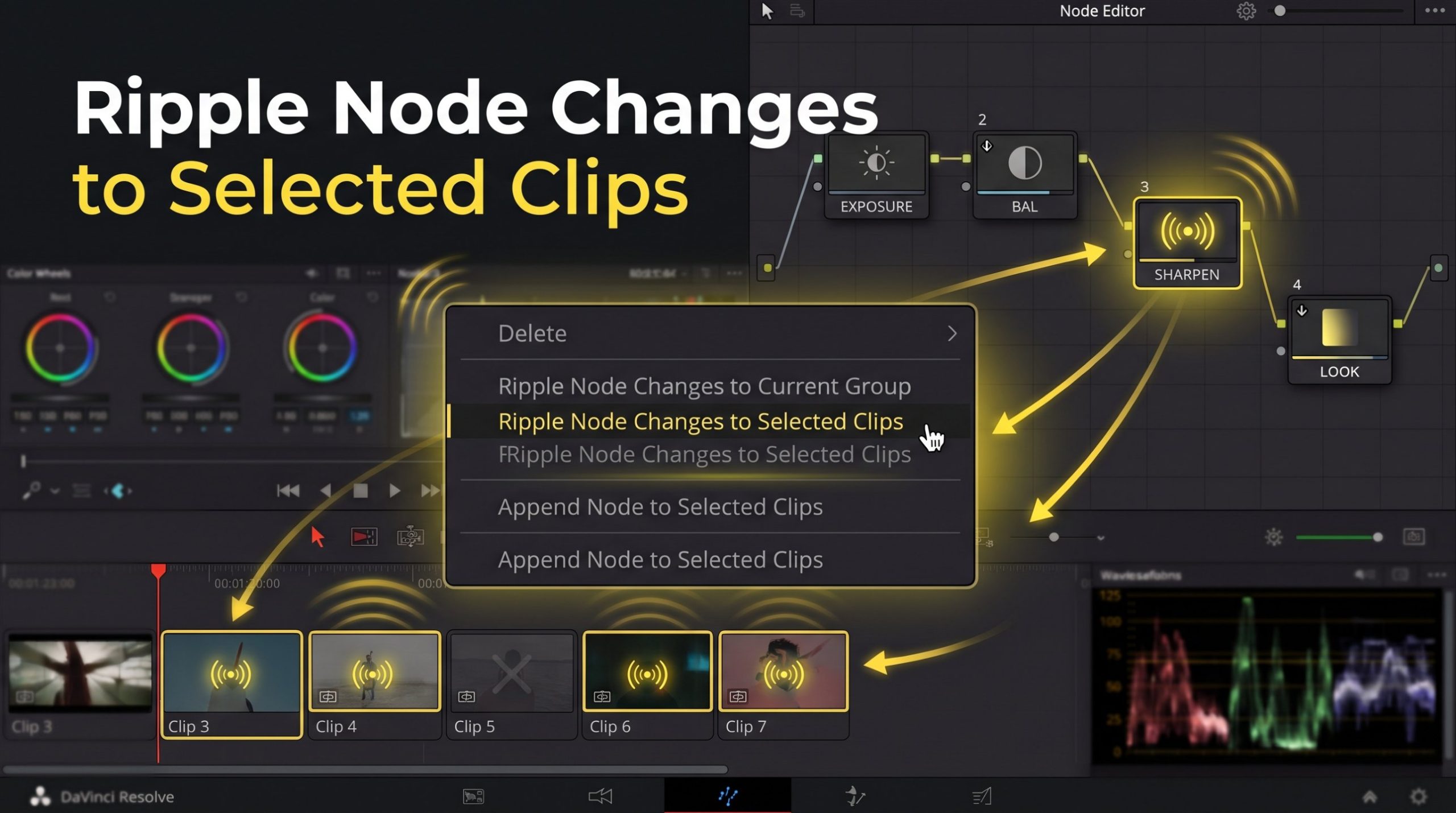
Ripple Node Changes to Selected Clips
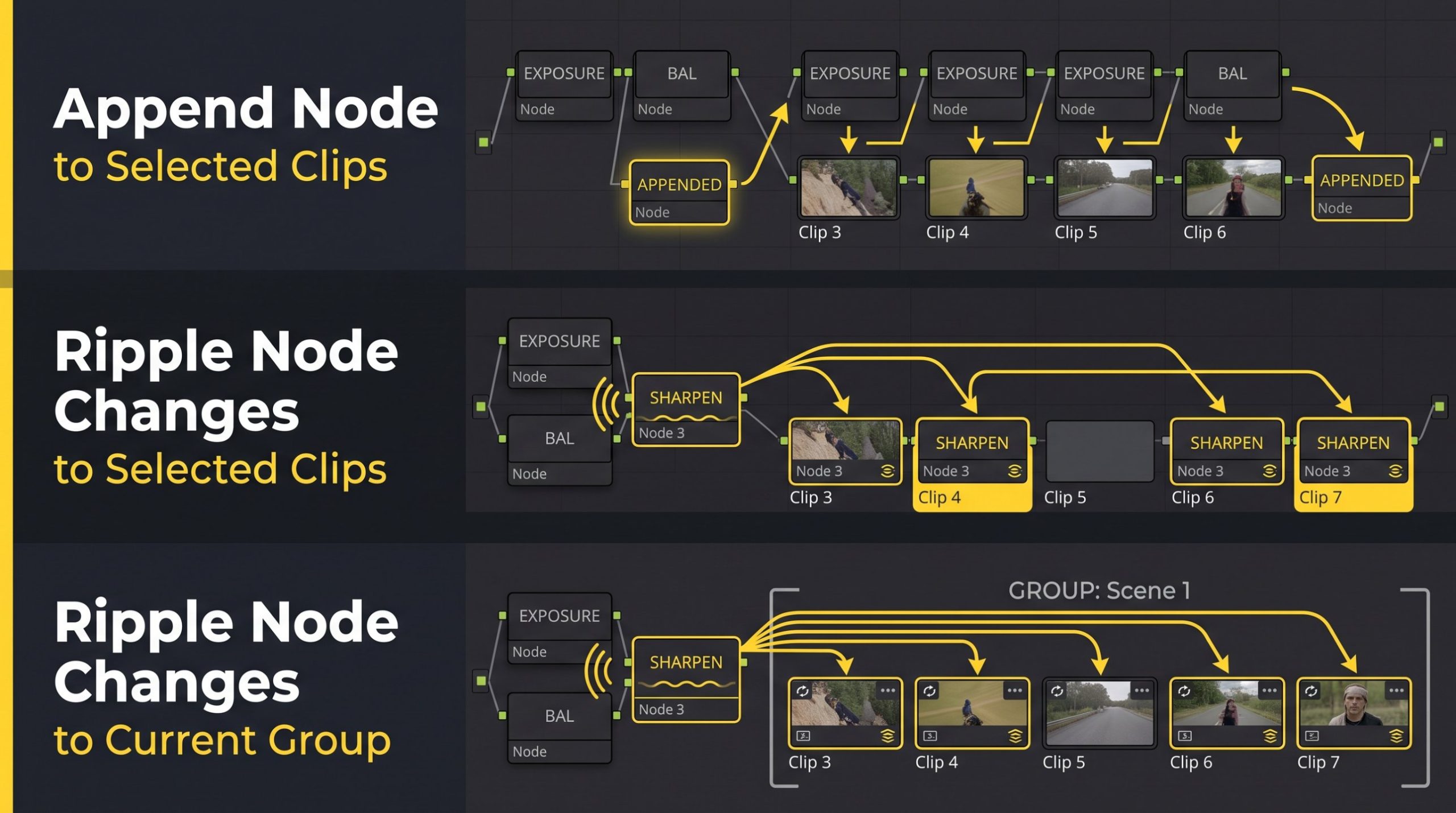
Make a change to one node, and that change is copied to the same-numbered node on the selected clips. For example, a change to Node 3 targets Node 3 on the other selected clips. The destination clips need a compatible node structure for the change to apply as expected.
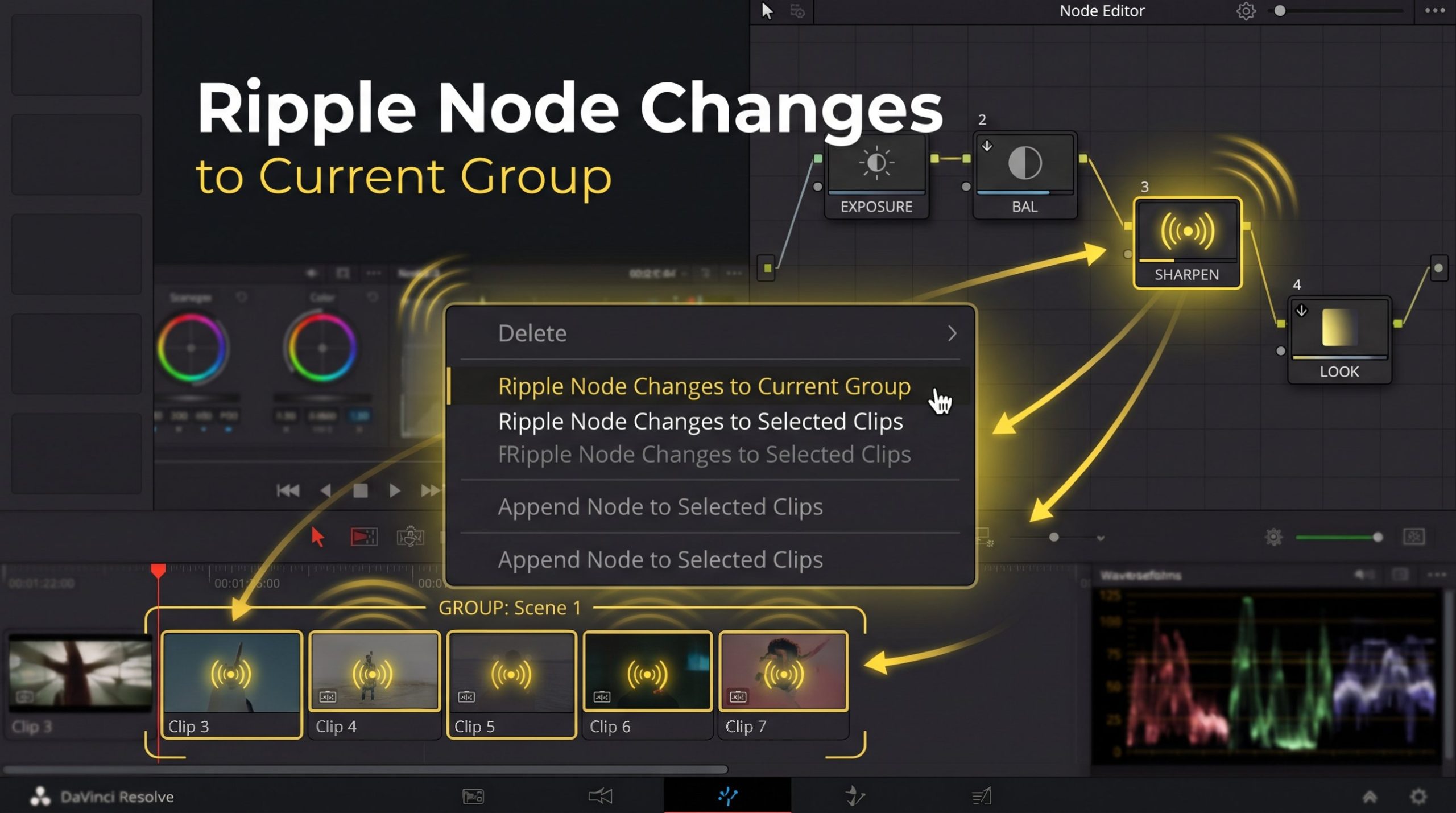
Ripple Node Changes to Current Group
This uses the same node-matching mechanism but targets clips in the current group instead of relying only on a manual selection. The clips must already be organized into the appropriate group.
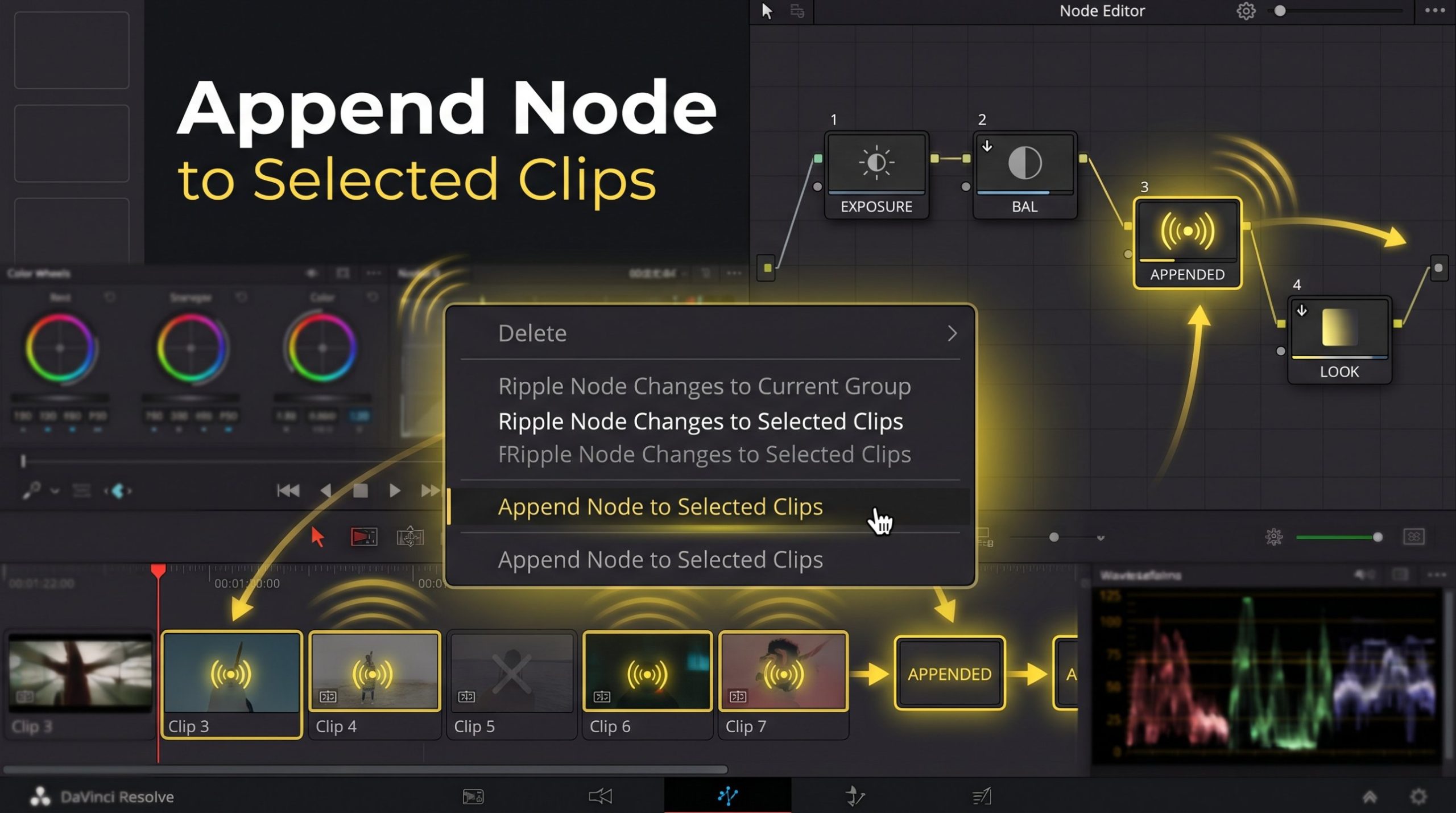
Append Node to Selected Clips
This adds a copy of the selected node to the end of each selected clip’s node tree instead of targeting an existing node by number. It can be useful when the destination clips do not yet share the same node structure as the source clip.
How Node Matching Actually Works
Resolve targets nodes by their number, not by understanding what each node does. If Node 3 on your source clip controls a skin-tone power window, the corresponding operation targets Node 3 on the destination clip, even if that node serves a different purpose there.
If a destination clip does not contain the corresponding node, the change may not be applied. Keep node structures consistent and review the result across the sequence.
Step-by-Step Workflow
- Select your current clip. Choose the clip where you want to make the adjustment.
- Select the destination clips. Use the Color page thumbnails to select the clips that should receive the change.
- Make your change. Adjust the relevant node on the source clip.
- Run the appropriate Ripple command. Choose Ripple Node Changes to Selected Clips or Ripple Node Changes to Current Group, depending on your target clips.
- Check the results. Review the destination clips to confirm the change was applied correctly.
Two Things That Will Trip You Up
- Undo requires care. Do not assume one Undo will reverse every change across multiple clips. Inspect the affected clips and undo carefully if something goes wrong.
- Node structure has to match. Ripple targets nodes by number. If a clip lacks the matching node, the change may be skipped; if that node serves a different purpose, the result may be unsuitable. Use a consistent node template and clear labels where possible.
Quick FAQ
Does Ripple work across different timelines?
Ripple commands are intended for clips in the current grading context. To transfer grades between timelines, consider ColorTrace.
Can I ripple changes to more than one node?
The result depends on the command and the changes made. Review the destination clips and their node structures after applying the operation.
What happens if I use Selected Clips instead of Current Group?
Selected Clips targets the clips you selected. Current Group targets clips in the current group.
How can I check that my node numbers match?
Inspect the node trees across the clips and use clear node labels or a consistent node template before applying a Ripple command.
Resources
- DaVinci Resolve 21 Reference Manual, Blackmagic Design. Search the manual for “Rippling Adjustments Among Multiple Clips” for details on the command’s behavior.